
Publicado 6 years ago
Emaze is an impresively simpe online platform where you can create some great content like infographics with ease. Wouldn’t it be great if creating infographics was as simple as writing regular old text-based blog posts? Usually, making visual content like this takes much more time, effort and skill than written word. For the most part, the purpose of an infographic is to engage, summarize and inform. Making an effective infographic requires you to collect data, write compelling text and present them in a visually appealing way. Human beings are highly visual. 90% of the information that comes into the brain is visual. So to get a point across, you need to tap into this.
Creating a simple infographic can be a hard task at times. True, there are a number of infographic making tools one can choose from. The issue however, is finding one that works best for you. Most of the available softwares are complicated and can be quite cumbersome at times. From Adobe Photoshop to PowerPoint to Adobe InDesign, most of these softwares are costly. This can be a huge deterrent especially if you are not looking to spend money to make a simple infographic. They also take longer to learn using and this especially is a huge put off.
Introducing Emaze. It is a free online content creation program designed to “emaze” everyone who comes into contact with your content. It allows users to create fantastic visual presentations without having to waste lots of time doing so. It has a list of different templates you can choose from to start working on your content. Each of these in built templates give the user an interesting visual hook to grab your audience’s attention.
Emaze was founded in 2009 and up to date has had close to 50 million users.
Pros:
Cons:
So how exactly do you create an Infographic with Emaze?
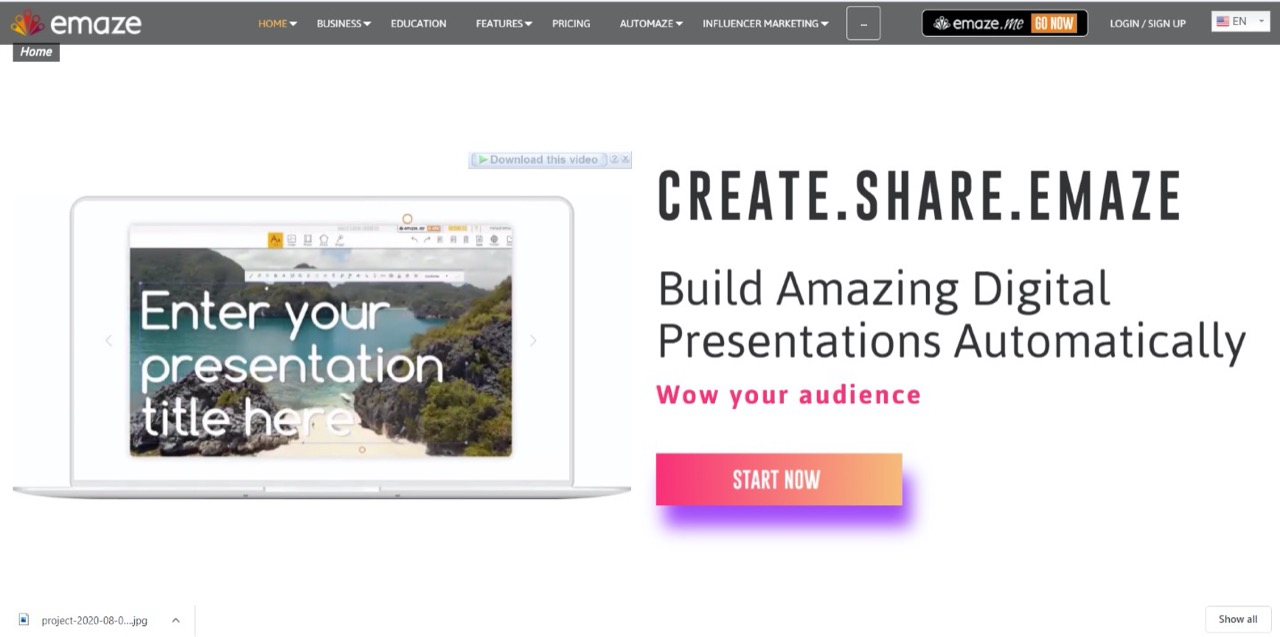
Go to www.emaze.com. Once on this page lick on the Start Now button if you don’t have an account. If you already have an emaze account, simply click on Log in.
Step 2: Fill in your details
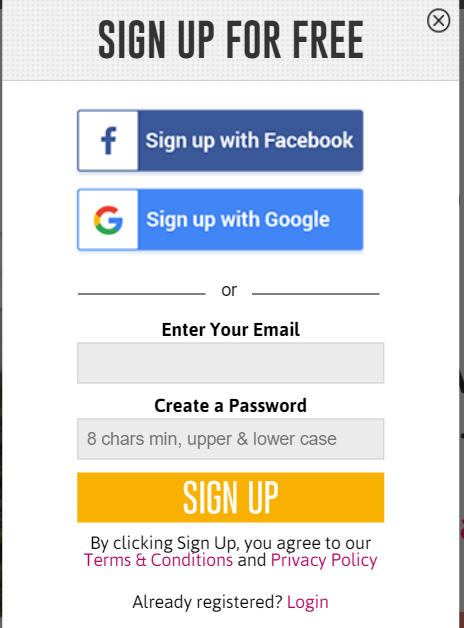
After clicking on Start Now a dialog box will appear requiring you to fill in your email and create a password. Alternatively you can sign up with Google or Facebook.
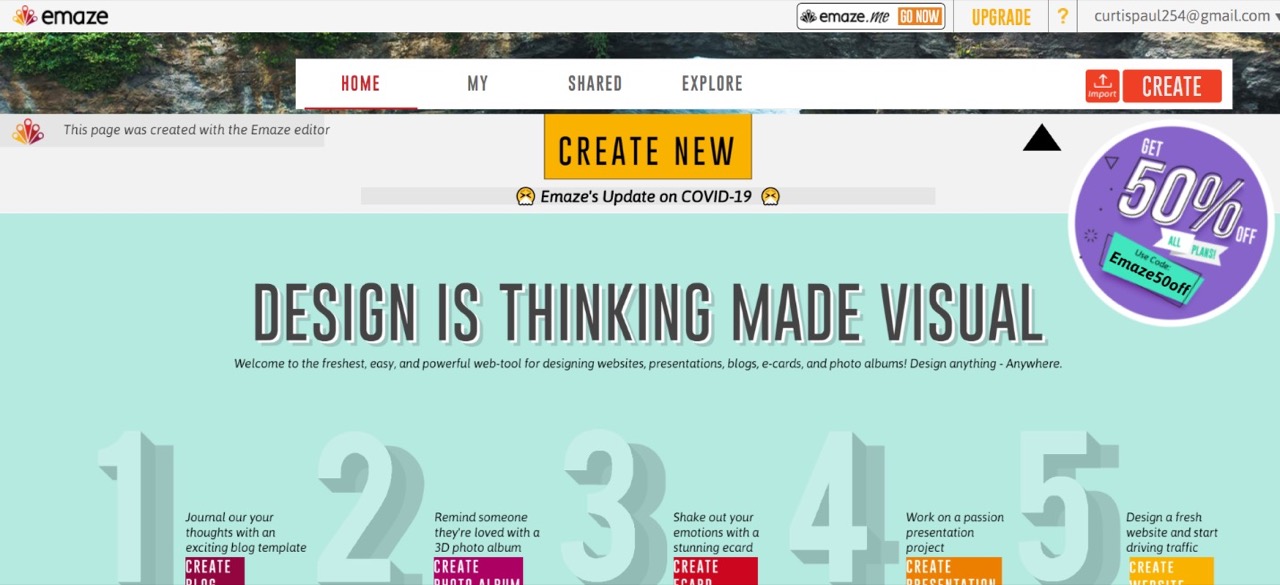
After you log in to your account you’ll be directed to a page where you can now begin designing. Click on the Create New option.
This will open a dialog box which requires you to choose what type of content you want to create.

Click on the E-card button. This opens a page where you can browse for an appropriate template that fits your needs. Note that we’re using the E-Card option because it’s the closest thing you can use to create an infographic with Emaze. Trust me, it will pass for a nice infographic with the right adjustments!
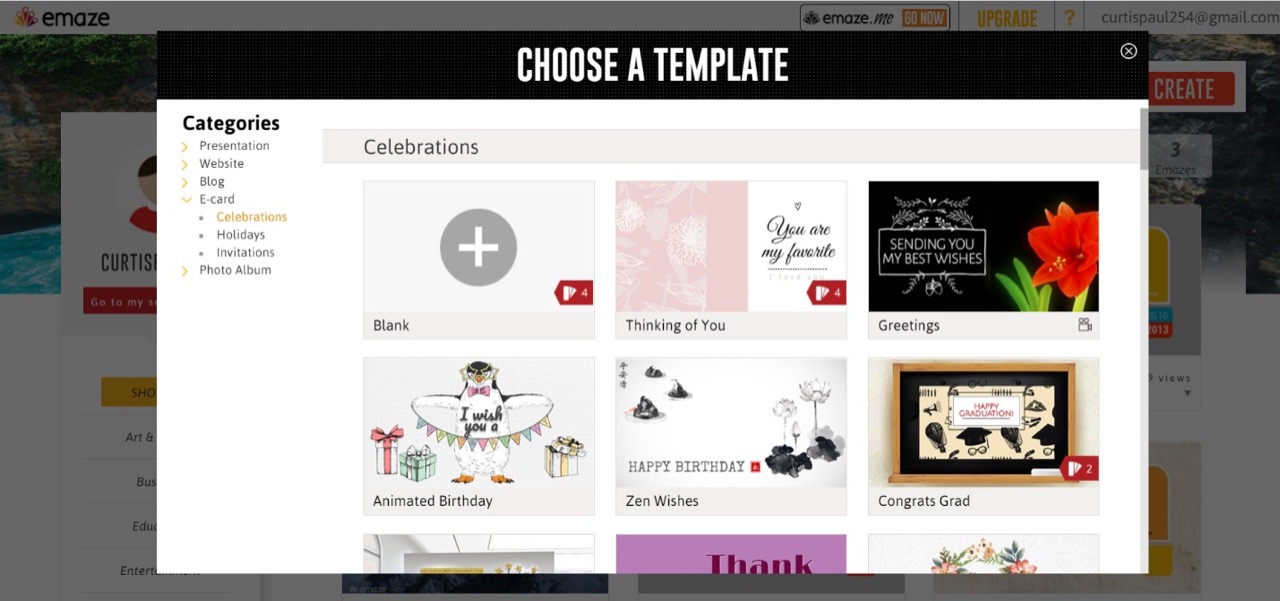
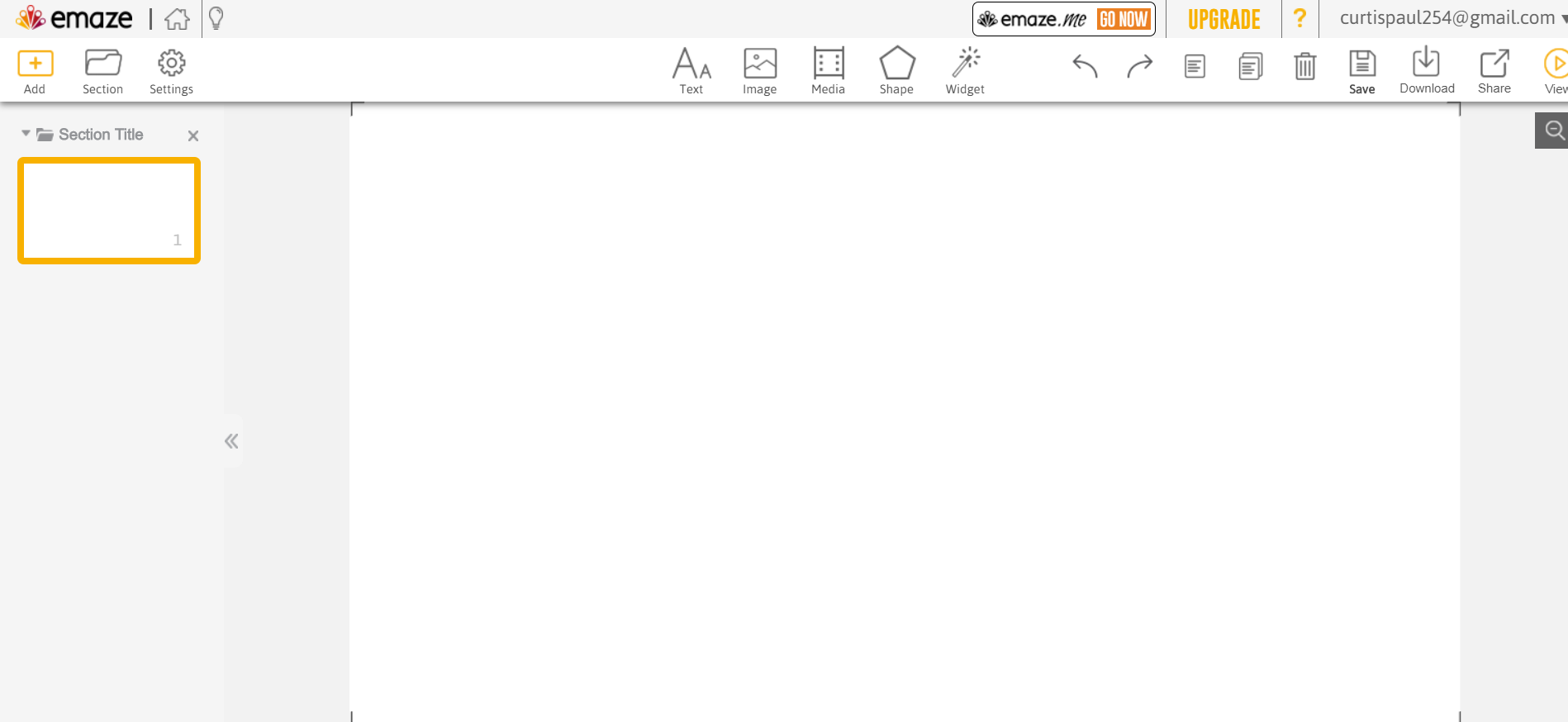
You can also choose to create a blank one. For this just click on the Blank option. A blank canvas will appear where you can begin working on your content.
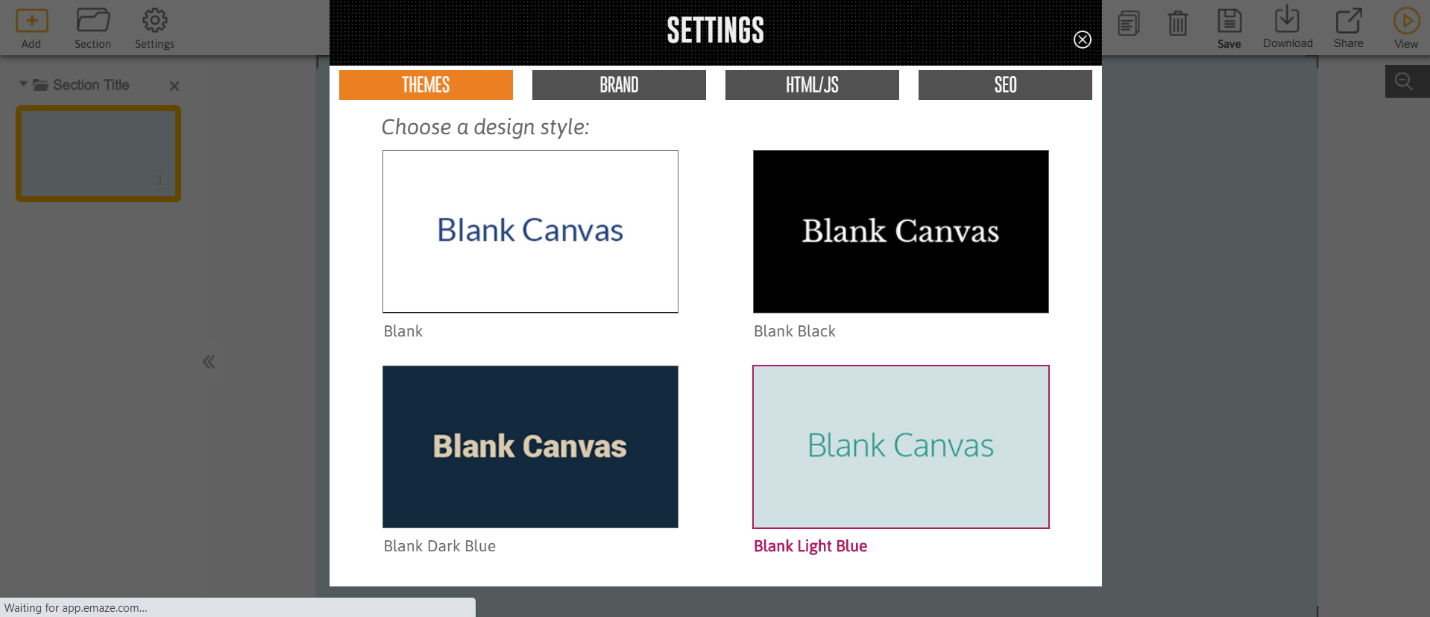
To add a background to your canvas, click on Settings and pick one from the ones Emaze provides.
Click on the Image icon right above your canvas. This will give you several options to choose from. For free images go to imagesload.net and search for an image you like. Copy the URL of the image and paste it in the search bar. Click on Add and your image is sent to the canvas.
Here is what mine looked like:
(https://imagesload.net/view/black-man-and-woman-touching-chin-transparent-background-png/BCd9n)
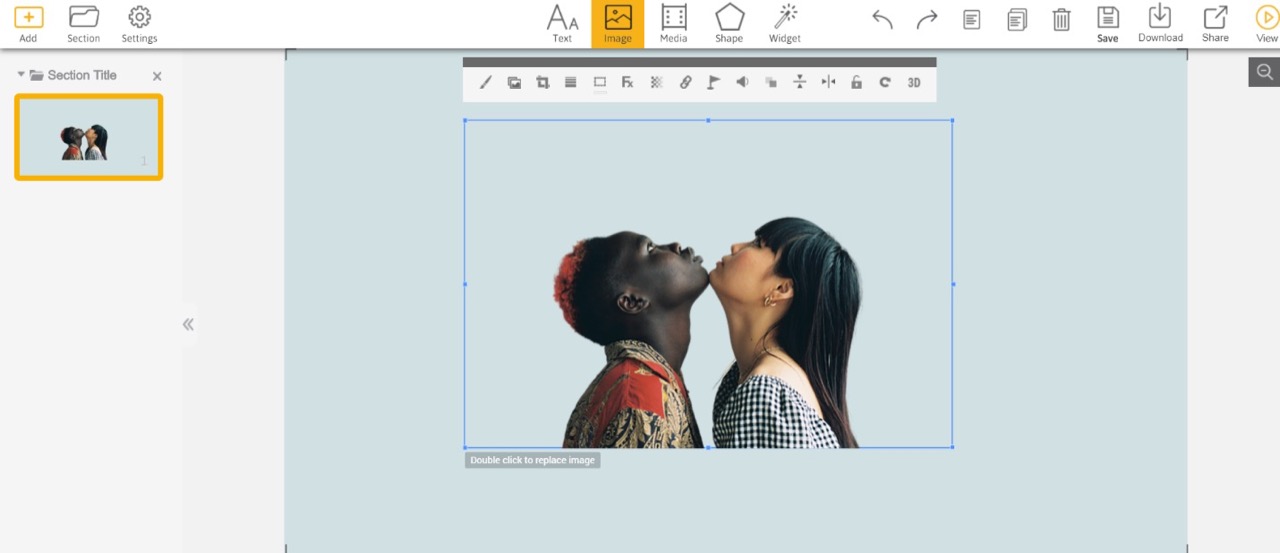
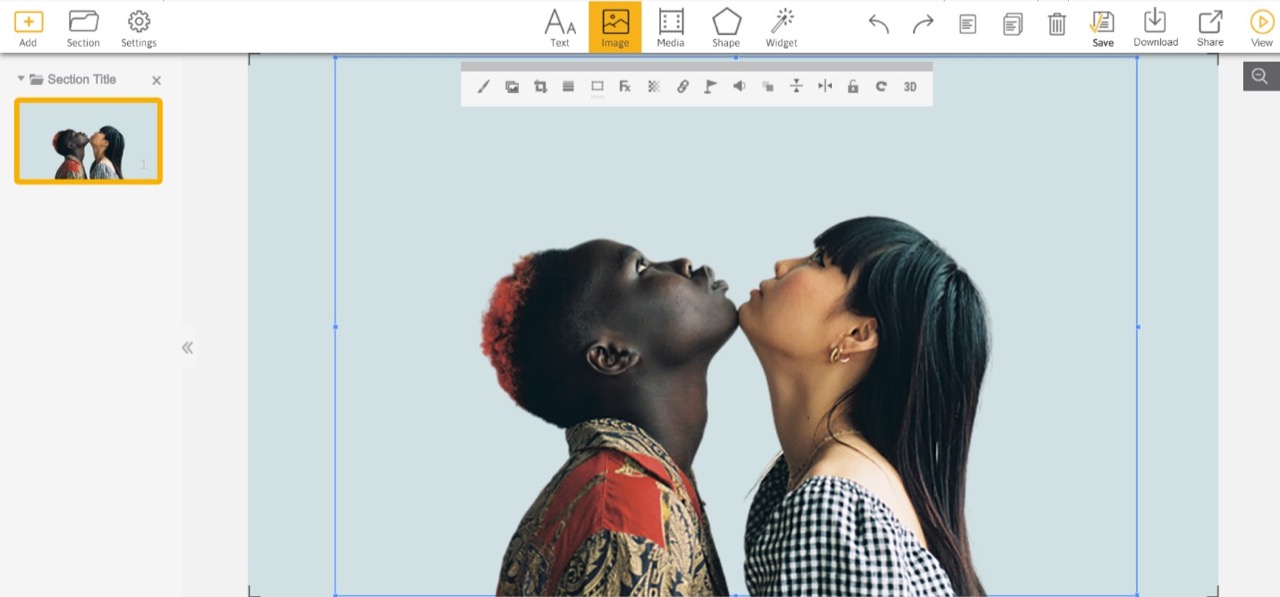
Play with the edges of your image and make sure it fits well onto your canvas.
You can edit the features of your image using the icons that appear right above your canvas. Adjust these until you’re satisfied with your image.
Proceed to add your text appropriately. You can drag the text boxes to resize them or position them in the canvas wherever you desire.
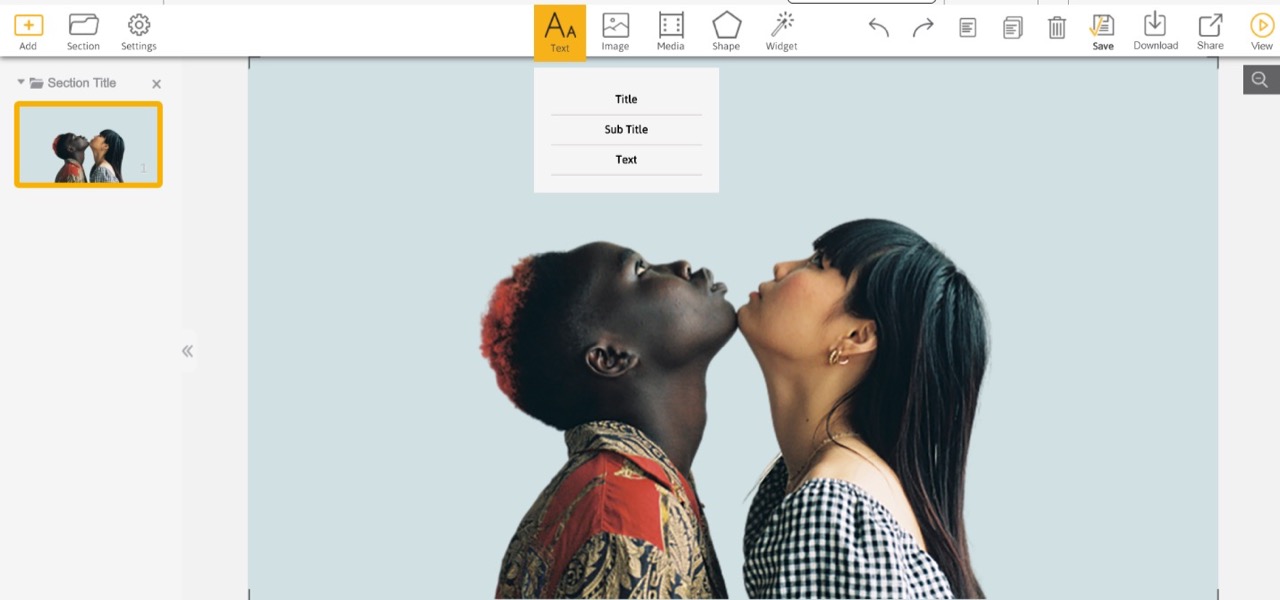
You can edit your text accordingly by using the icons that appear in the text tab above your canvas.
While at this you can add shapes from the bar above your canvas by clicking on the Shapes option.
Here is what mine looked like after adding text and after editing.

After this you’re basically done with your infographic. For whatever content you’re creating be sure to play around with the controls for maximum output. Click on Download to get your content. You can also click on the Share button to share your infographic. It took me less than 10 minutes to finish my infographic. Try and make yours more detailed and eye catching.
As you can see, Emaze allows you to make use of its many features to customize your content to your liking. Better still, it’s easy to use and doesn’t take you much time. The content you produce is guaranteed to be of high quality too. What else could you ask for!