
Published 6 years ago
The main purpose of creating an infographic is to present information quickly and clearly. Infographics help improve cognition by utilizing graphics. These graphics enhance a human’s visual system to see patterns and trends. Infographics are easier to understand and grasp than normal texts.
At times, creating a simple infographic can be a hard and daunting task. This is especially true if you’re using the wrong application/ tool. Some of the available tools e.g. Adobe In-Design, Photoshop, Canva etc. are complicated and costly. This can be a huge drawback especially if you just want to create a simple infographic. Other tools like MS Paint and PowerPoint are too basic and don’t offer much in terms of features.
Introducing Lucidpress. This is a content creation tool which is both easy to use and considerably cheap (for the paid version). If you are not looking to spend money, Lucidpress also offers a free trial. With this tool you need not worry about the quality of your content. It has a variety of in-built features that will enable you customize your content to your liking.
From full text control to the drag and drop functionality, Lucidpress is guaranteed to help you create high quality content without much fuss. It also fills a niche for content creation and collaboration. Introduced in 2013, its design capabilities range from single page documents e.g. Business cards, Flyers, Posters etc. to multipage documents such as Annual reports and Magazines.
1. Incorporates a real time collaboration editor.
This allows multiple users to edit a document simultaneously. Users can also make comments and chat with collaborators in real time.
2. Publication
Lucidpress allows you to publish your content through;
3. Cloud based
Lucidpress is compatible with modern-day web browsers such as Google Chrome, Firefox, Safari, and Internet Explorer. Your documents are also securely stored in the cloud. Lucidpress started as a platform for single users and small businesses. However, over recent years it has found a larger user base in both the education and enterprise niches.
As of 2020, Lucidpress has 8 million users. There are tons of reviews left by users and some of these include;
Pros:
Cons:
Lucidpress is extremely user friendly. One does not need formal training to use the tool. All you need is a Lucidpress account (which is free) and your creativity.
Step 1: Log in to Lucidpress.
Go to www.lucidpress.com.

Enter your email address. You can then choose the option Get started. If you already have an account you can simply just log in.
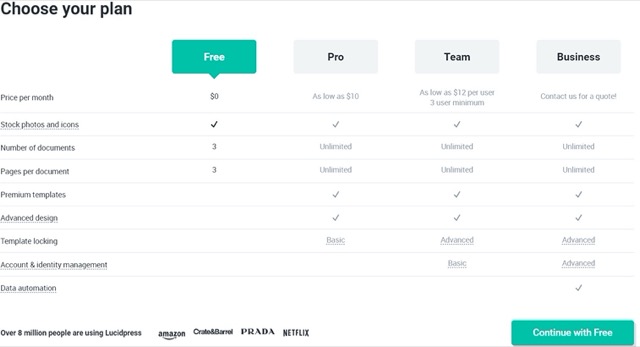
Step 2: Choose a plan
You will then be redirected to a page where you’ll be required to choose a plan. For purposes of this guide I chose the free version. So click on free and then click on Continue with free.
Step 3: Choose a template
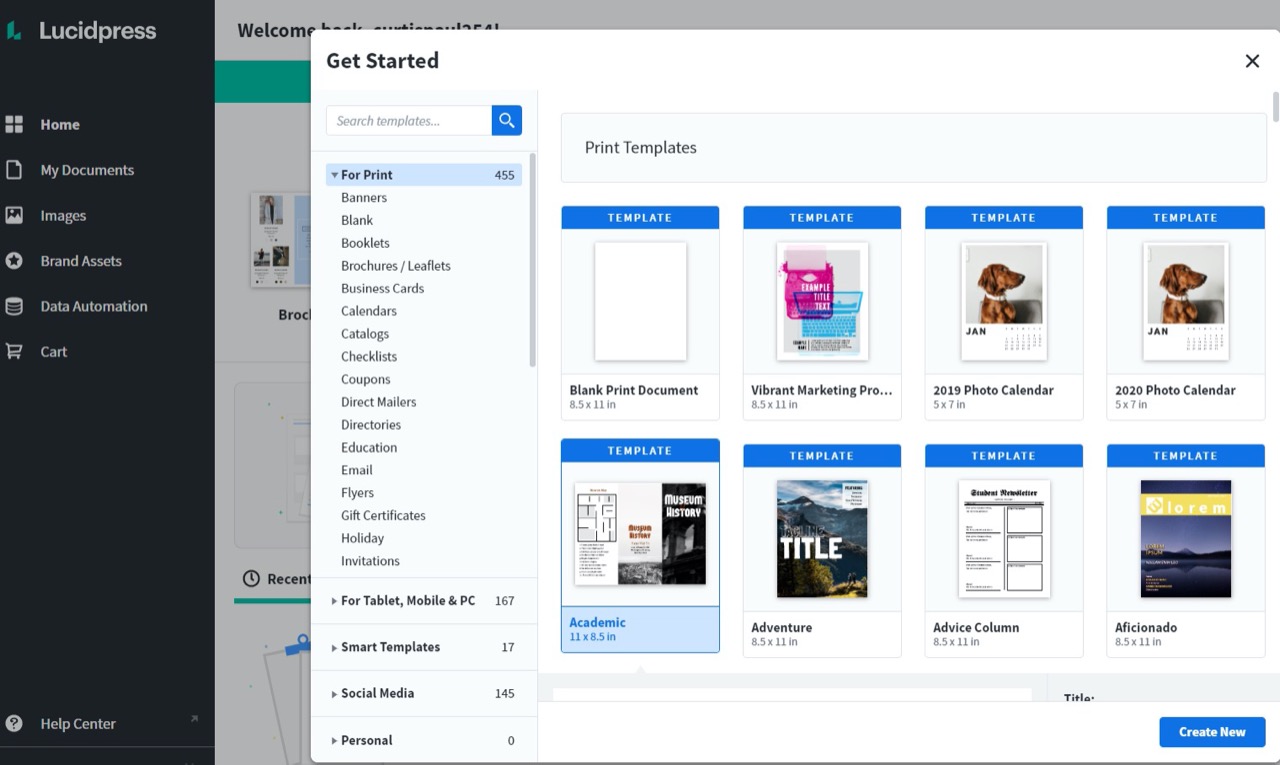
You can now begin designing your infographic. You can choose from the available templates or even search for more. You can also design your own template from the Blank Print Document option.
Make sure the template you pick is ideal to your needs. Whether it’s a poster, brochure, booklet, flyer etc. that you’d like to create, you can find the options on this page.
After finding your preferred option click on Create New.
For this guide I’d like to create an original business flyer without using an already existing template. So I’ll click on Blank Print Document and then Create New.
Step 4: Choose a custom template size.
In the Size and Orientation toolbar there is a number of standard template sizes you can choose from. I will leave my size as it is and change the Orientation to Landscape (Vertical)
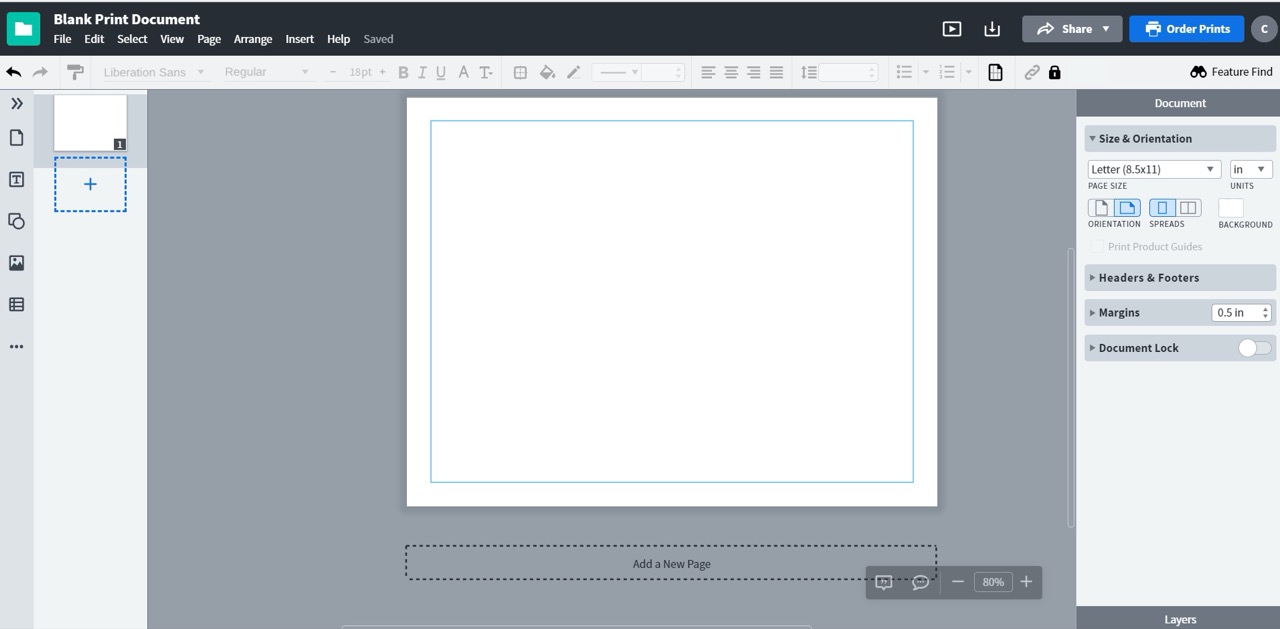
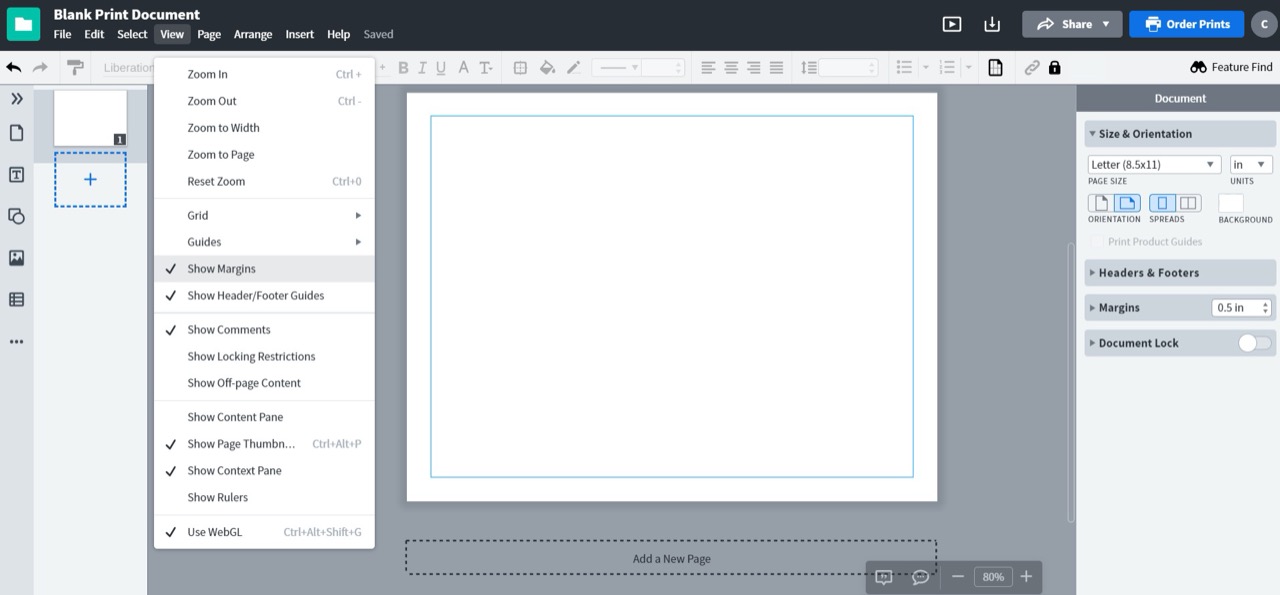
Note: Keep your main design within the margins (In blue) so that nothing gets cut off if you get this printed. So click on Views and make sure Show Margins option is active.
Step 5: Add background image.
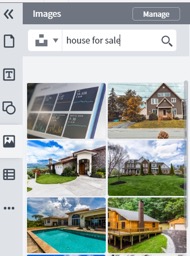
The next step is to find an appropriate image for the infographic you are creating. Click on the picture icon on the left of your screen.
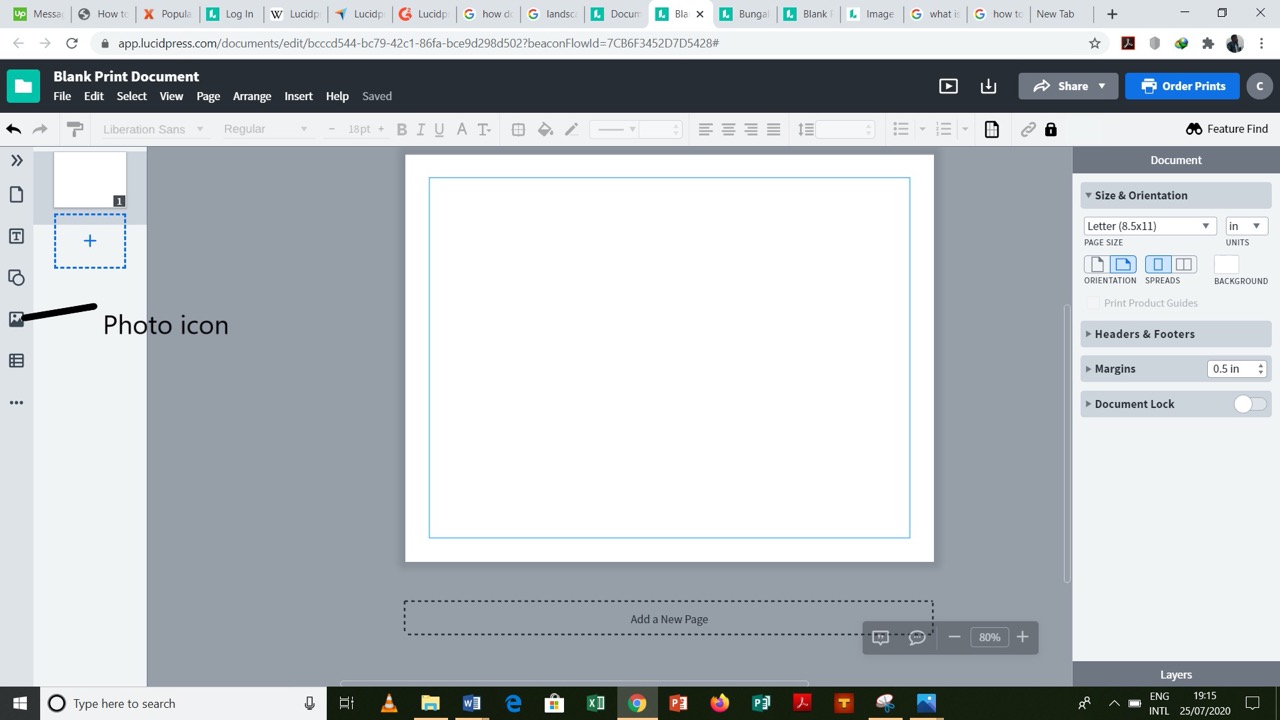
The following dialog box will appear. Click on the drop down menu for the folder icon.
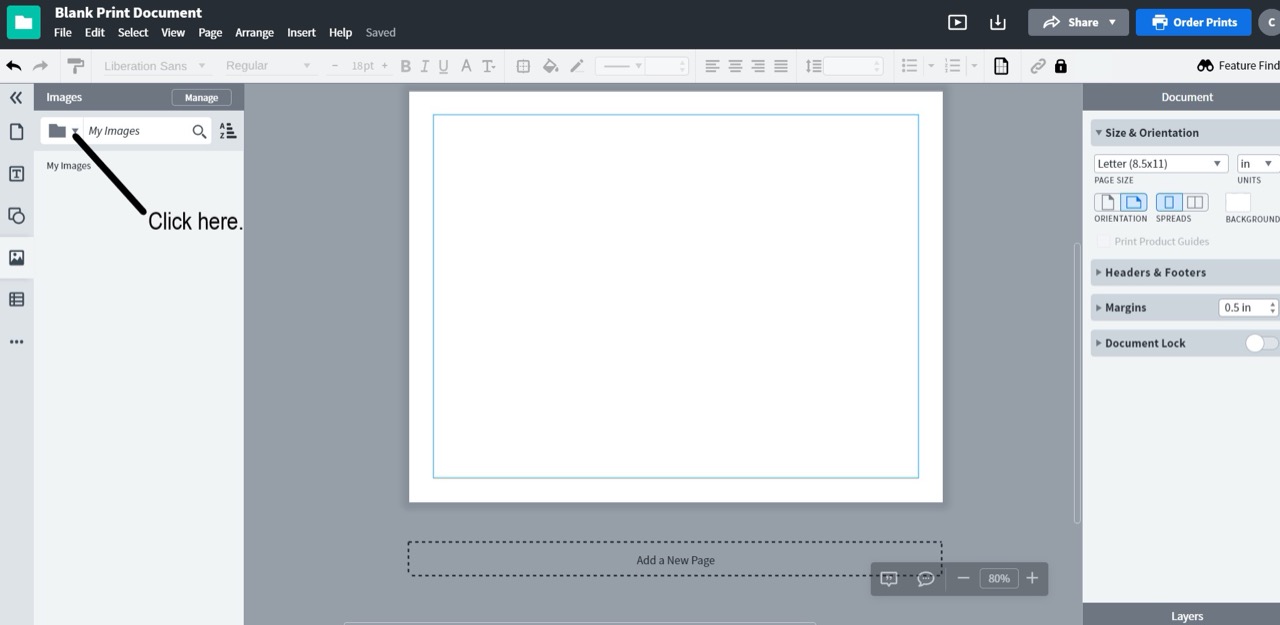
A number of options will appear after clicking this;
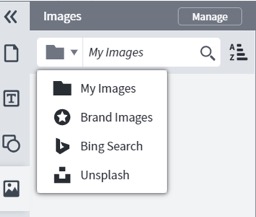
The aim is to use a free image so click on Unsplash
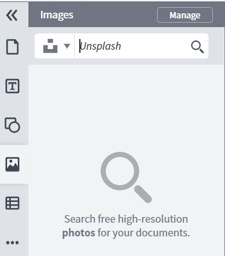
As you can see Unsplash offers free high resolution photos. Type into the search bar and pick whatever image appeals to you. In my case I’m looking to create a flyer for a Real estate business so I’ll conduct a search for this. Several options turned up so I picked one of them.
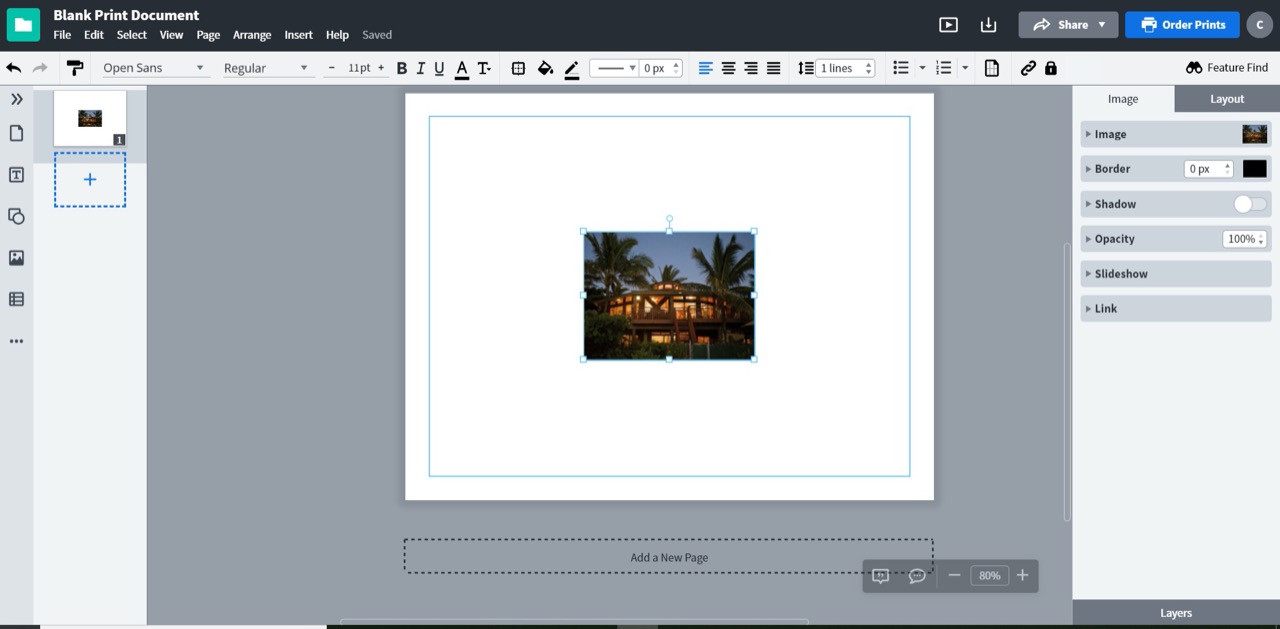
Click on the image you like and drag it into your workspace.
Step 6: Foreground images
So you get background images from unsplash. What about foreground images. You can add them from My Images, however where do you find free foreground images? The problem is always going to be that they will have sort of background. This is where you can images from https://imagesload.net. There's a huge range of images with transparent backgrounds so you can simply add these to your work. They are all creative commons free!
Step 6: Edit Image
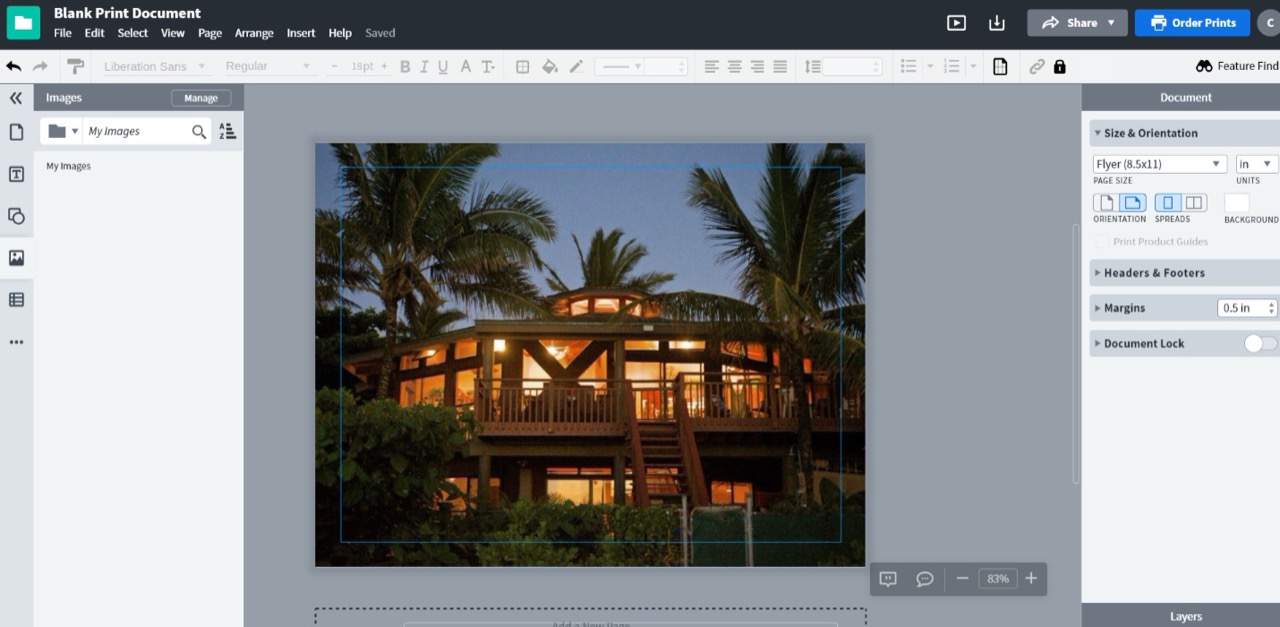
After this process resize your image so that it fills your canvas. Mine looked like this;
Step 7: Add text and adjust its formatting.
Click on the Text icon on the left side of the screen and drag it into your workspace. You can pick either the Headings choice or the Subheadings. It all depends on you.
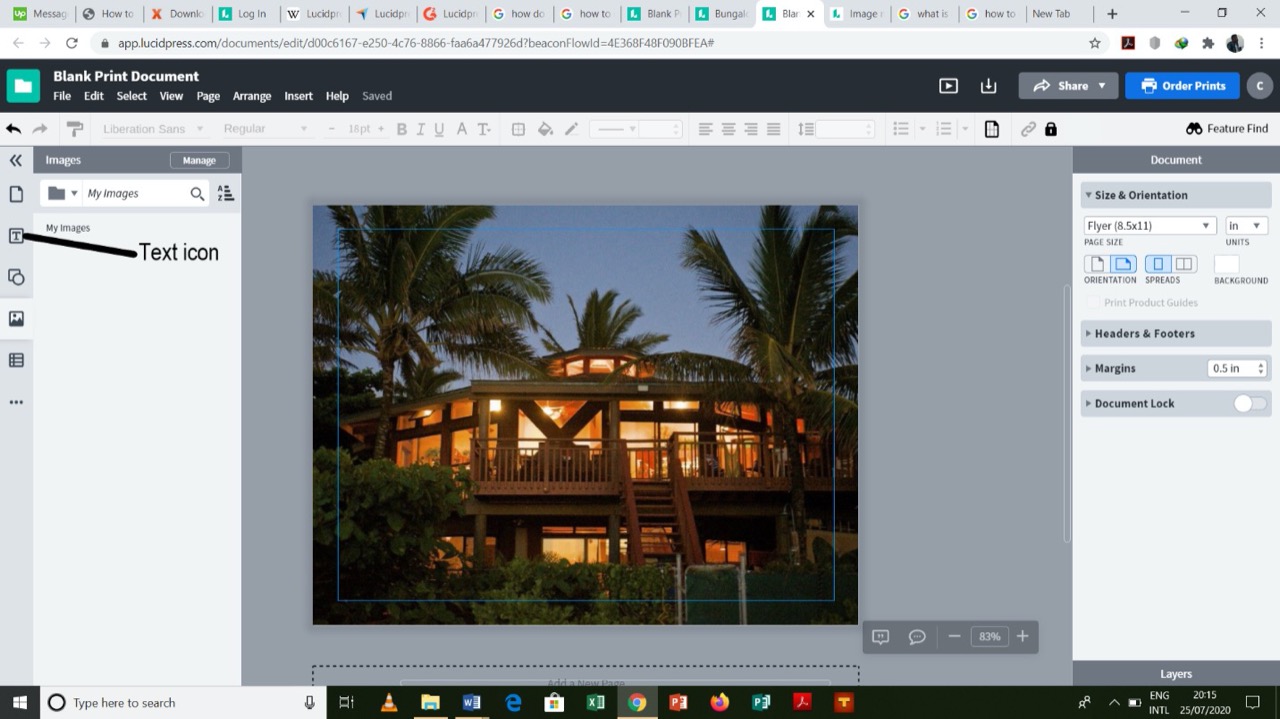
Position the text box where you’d like it to be. Type in your text. You can adjust details such as the font and its size. Adjust the size of your text box if your text is too long (just drag one corner of the box)
Note: At times the background image can make your text not be visible. Adjust the fill in the Fonts command to make it visible.
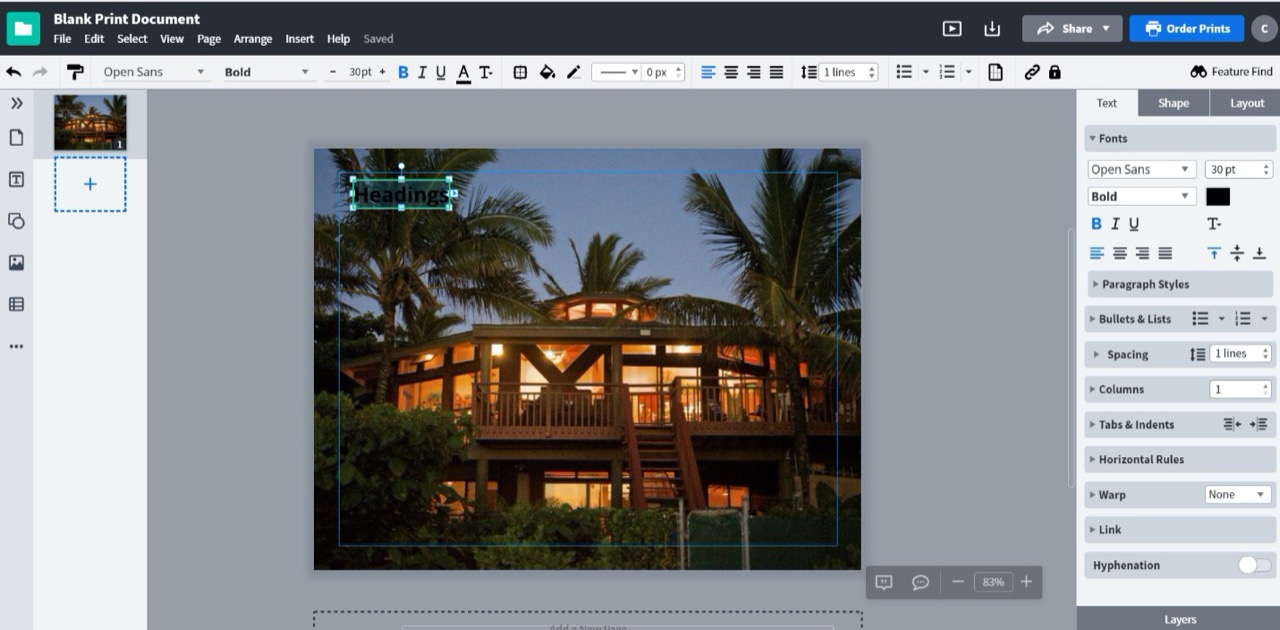
You can also add shapes as well as other features to your infographic. Again, it’s all according to your preference and the type of infographic you’re creating (see the icons on the left side of your screen).
This is what mine looked like after tinkering with the title a bit.

Step 8: Add other relevant text.

Final steps

Try and play around with the commands so you get a feel of everything. You can always press Ctrl+Z on your keyboard to undo an action.
This will open a bunch of options for you to choose in what format you’d like to download. You can choose to download in PDF, PNG OR JPEG formats. Finally, click Download.
And voila! The final product.

As you can see, creating an infographic using Lucidpress is simple. There are no complicated commands. You can spend time playing around with the features and within no time you’ll be a pro. This was my first time using Lucidpress and it didn’t even take me more than 30 minutes!
You can create infographics with all manner of combinations of the different features without much trouble. Consider giving Lucidpress a go and you will be guaranteed high quality content that is easy to create.
For royalty free / creative commons images for your infographics, you can go to https://imagesload.net